
Title: Troubleshooting Common Issues with Desktop Label Printers: A Complete Guide
Simple Solutions to Keep Your Printer Running Smoothly and Efficiently

Introduction:
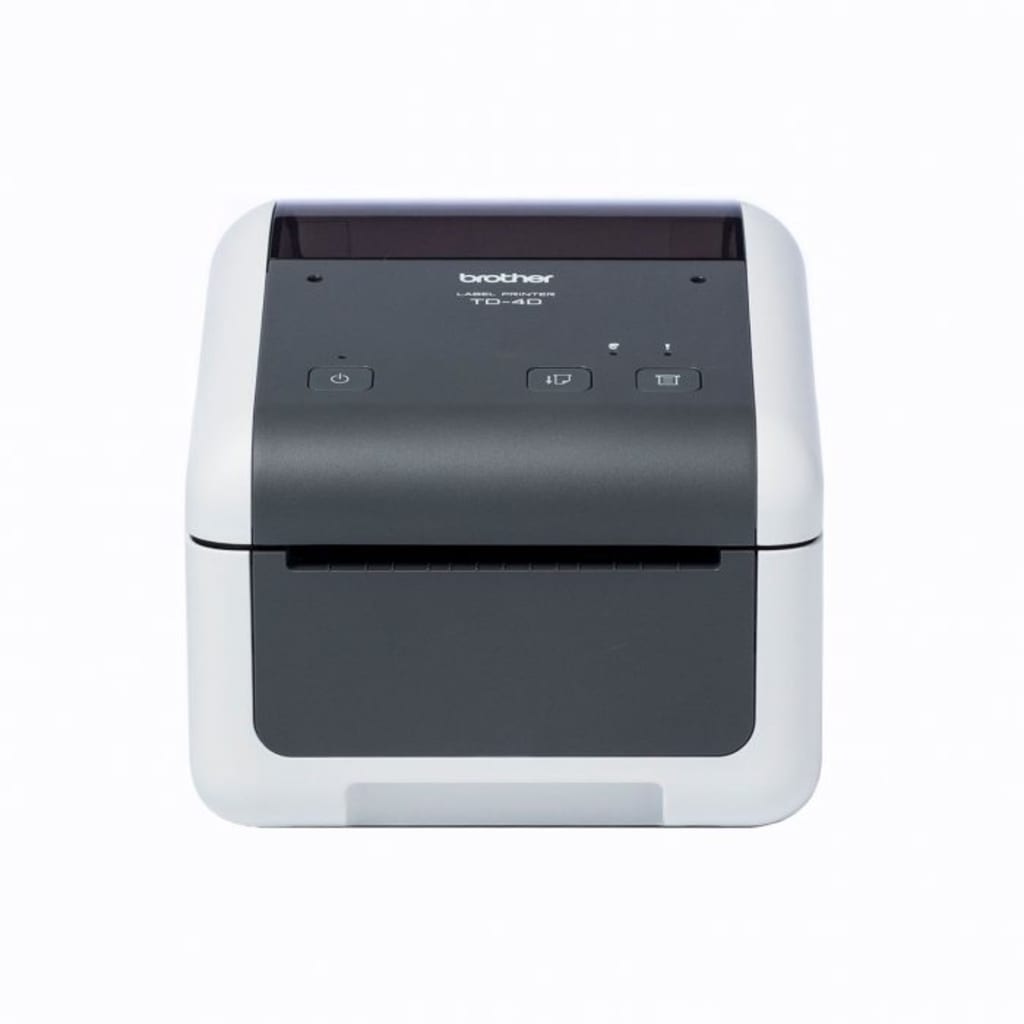
Desktop label printers are essential tools for small businesses, warehouses, and offices that need to print shipping labels, barcodes, and product tags. However, like any technology, these printers can sometimes experience issues that can slow down your workflow. Whether it's a paper jam, connectivity issue, or poor print quality, understanding how to troubleshoot common problems with desktop label printers is crucial to keeping things running smoothly.
In this blog post, we’ll explore the most common issues users face with desktop label printers and provide practical solutions to fix them.
1. Paper Jams: Causes and Solutions
One of the most frequent problems that users encounter with label printers is paper jams. A paper jam can occur for various reasons, including improper loading of the label roll or using incompatible label media.
Causes:
Incorrect alignment of labels or media.
Using damaged or incorrect label stock.
Dirty rollers causing labels to stick.
Solutions:
Power off the printer: Before attempting to fix any paper jam, always turn off the printer and disconnect it from the power source.
Remove the jammed paper: Gently pull out the label roll or paper from the printer, making sure not to tear the paper.
Check the label media: Ensure that the label roll is properly installed and is compatible with your printer model.
Clean the rollers: Use a soft cloth or cleaning solution to clean the rollers and remove any residue that may cause labels to stick.
2. Poor Print Quality: Fixing Faded or Blurry Prints
Another common issue with desktop label printers is poor print quality. Labels may appear faded, blurry, or have incomplete prints, making them difficult to read or scan.
Causes:
Low ink or toner levels (for thermal transfer printers).
Dirty printhead.
Incorrect printer settings (e.g., resolution or speed settings).
Using incompatible labels.
Solutions:
Clean the printhead: Over time, dust and adhesive residue can accumulate on the printhead, affecting print quality. Use a soft, lint-free cloth and isopropyl alcohol to clean the printhead.
Adjust the print settings: Ensure your printer settings are set to the correct resolution (usually 203 dpi or 300 dpi) for clear printing.
Replace the ink or thermal ribbon: If using a thermal transfer printer, check if the ribbon is running low or is worn out, and replace it as needed.
Use high-quality labels: Make sure you are using the recommended type of labels for your printer. Poor-quality or incompatible labels can result in poor print performance.
3. Connectivity Issues: Printer Not Connecting to the Computer
Label printers that are not connecting to your computer can halt operations entirely. These connectivity issues can be caused by incorrect drivers, faulty cables, or wireless network problems.
Causes:
Outdated or incompatible drivers.
Loose or damaged cables.
Wireless connectivity issues (if using a networked printer).
Solutions:
Update or reinstall drivers: Go to the manufacturer’s website and download the latest drivers for your specific printer model. Reinstalling the drivers can often fix connectivity issues.
Check cables: If you’re using a USB or Ethernet cable, make sure it's securely connected to both the printer and the computer. Try using a different cable if needed.
Reset wireless settings: For wireless label printers, ensure your Wi-Fi connection is stable. If needed, reset the network settings or reconfigure the printer’s connection to the network.
4. Printer Overheating: What to Do When Your Printer Gets Too Hot
If your desktop label printer overheats, it can stop working or start printing poorly. Overheating can cause long-term damage to internal components if not addressed quickly.
Causes:
Printing for extended periods without breaks.
Poor ventilation around the printer.
Using high-speed printing settings for large volumes.
Solutions:
Give the printer time to cool down: If you notice your printer is hot, turn it off and let it cool down for several minutes.
Improve ventilation: Make sure the printer is in a well-ventilated area with plenty of airflow.
Adjust print settings: Reduce the print speed if you’re printing a large volume of labels. Slower speeds can help prevent overheating.
5. Label Size and Alignment Issues
Label alignment and sizing problems are a common frustration for users, often resulting in labels that are printed off-center or cut off at the edges.
Causes:
Incorrect label size settings in the printer or software.
Misaligned label media.
Faulty label roll installation.
Solutions:
Check label size settings: Ensure the label size set in the printer’s settings matches the actual size of the labels you are using. Most label printing software allows you to specify label dimensions.
Re-align the label roll: If the labels are misaligned, remove and reload the roll properly. The labels should feed evenly through the printer without any twisting.
Test print: Always perform a test print before running a large batch of labels to ensure everything is aligned correctly.
6. Error Codes and Printer Notifications
Error codes or warning lights can often be displayed on the printer’s screen, signaling issues that need to be addressed. These codes can vary by manufacturer and model, but they typically provide clues to help you identify the problem.
Causes:
Incorrect label media loaded.
Printer firmware issues.
Hardware malfunctions.
Solutions:
Consult the user manual: Check the printer’s manual or the manufacturer’s website for a list of error codes and their meanings.
Reset the printer: Sometimes, a simple reset can clear temporary errors. Turn the printer off and on again.
Update firmware: Ensure that the printer’s firmware is up to date. Sometimes, issues can be resolved by downloading and installing the latest firmware version.
Conclusion:
Desktop label printers are vital for smooth business operations, and understanding how to troubleshoot common issues is essential for minimizing downtime. By following these simple steps, you can address paper jams, poor print quality, connectivity issues, and more, ensuring your label printer performs efficiently.
If the problem persists or seems more complicated, don’t hesitate to reach out to customer support or consider professional repair services. A little maintenance and attention to detail can go a long way in keeping your label printer running at its best.
About the Creator
Almoe Qatar
ALMOE Qatar is the region's top choice for all things Audio Visual and IT, offering an unparalleled range of products and solutions. With over 20 years in AV and IT, we are proud to be the trusted partner for businesses in Qatar.
Keep reading
More stories from Almoe Qatar and writers in Lifehack and other communities.
5 Ways Our Video Conferencing Tool Solves Your Biggest Remote Work Challenges
As remote work becomes the new normal, businesses are facing a range of challenges when it comes to communication, collaboration, and team engagement. The right video conferencing tool can help overcome these challenges, ensuring your team stays productive, connected, and on track. In this blog, we’ll look at 5 ways a video conferencing tool can solve your biggest remote work challenges and make virtual meetings smoother and more effective.
By Almoe Qatarabout a year ago in Lifehack
Mistakes to Avoid for First Time Home Buyers in Belgium
Purchasing your first property in Belgium is exciting. But new buyers often make preventable errors. These mistakes lead to financial problems and regret. Learning what to avoid saves you trouble later.
By Noor Muhammad Khanabout 6 hours ago in Lifehack



Comments
There are no comments for this story
Be the first to respond and start the conversation.